
Why Are My Photos Too Large to Email? (And How to Fix It)
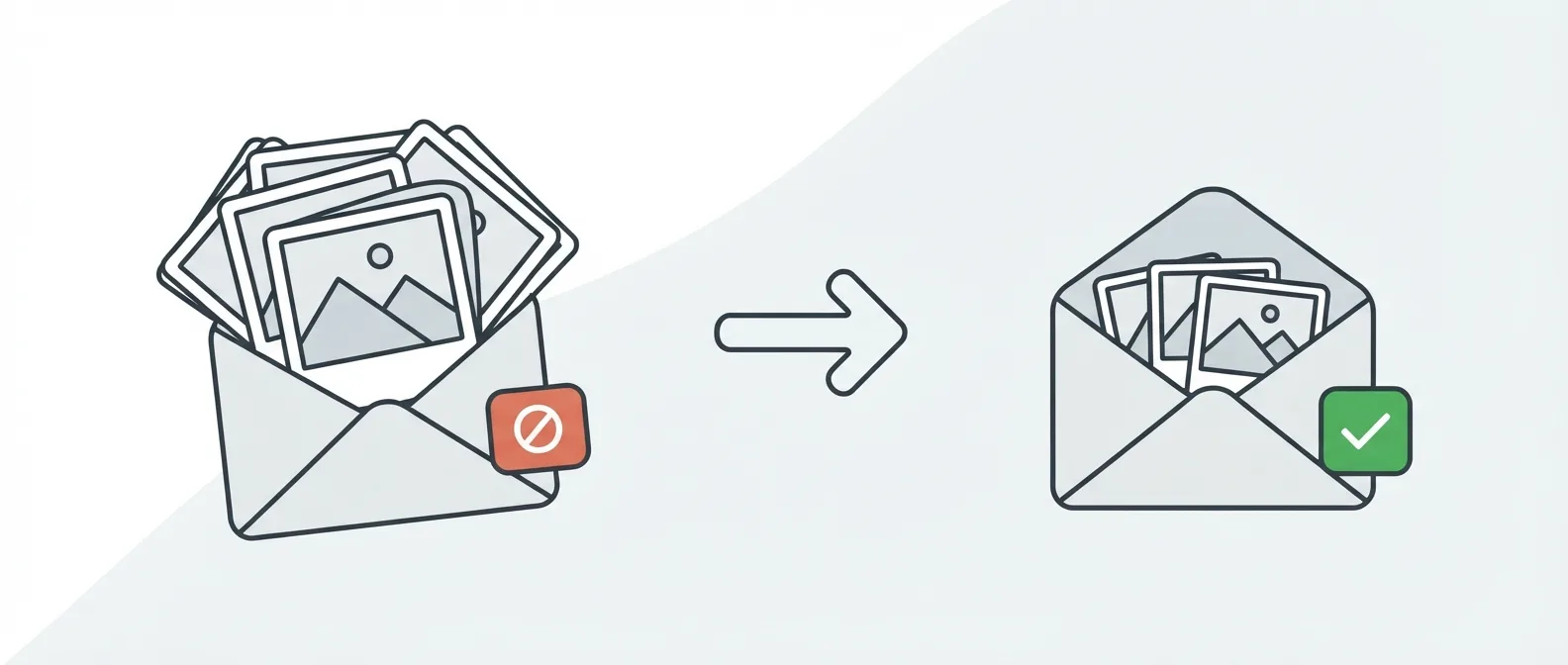
You select a handful of photos, hit send, and your email app tells you the attachment is too large. The photos look perfectly normal, so it is confusing. The explanation is simple, and so are the fixes.
Why email rejects your photos
There are three things working against you:
- Email has size limits. Gmail, for example, caps attachments at 25 MB per message. Other providers set their own limits, and the receiving mail server may have a stricter one.
- Attachments grow when they are sent. Email converts attachments into a text-friendly form that makes them roughly a third bigger than the original files. A set of photos that adds up to 20 MB on your phone can count as noticeably more.
- Phone photos are big. Modern phone cameras produce photos of several megabytes each, and special modes can produce far larger files. Four or five of them can reach the limit before you add anything else.
Fix 1: Compress the photos first
Sending a whole set? You can compress several photos at once and download them together as a ZIP.
This is the most reliable fix, because it works with any email app and any recipient. Photos are usually far bigger than anyone needs to view them on a screen, so you can shrink them a lot without a visible difference.
- Open the image compressor and choose a photo. It accepts JPG, PNG and WebP. If your photo is an iPhone HEIC file, convert it to JPG first.
- Leave the quality slider around 70%, which is a good balance for sharing, or raise it to 80–90% if you want the photo to look as close to the original as possible.
- Click Compress and compare the two versions side by side.
- Download the smaller file and attach it to your email.
If you want to control the exact size, the target-size pages let you type any number of kilobytes. For example, the 200KB page accepts a different target, so you could enter 800 to keep each photo under about 800 KB. Everything happens in your browser, so your photos are not uploaded anywhere.
Fix 2: Use your phone’s built-in size option
On an iPhone, the Mail app usually asks which size to send when you attach photos, with choices such as Small, Medium, Large and Actual Size. Android phones often offer a similar resize option in the share menu or in the email app. This is quick for a few photos, but you have less control over the final size than with a compressor.
Fix 3: Send a link instead
For a big batch, such as a whole event or trip, attaching files is the wrong approach. Upload the photos to a cloud service such as Google Drive, iCloud or OneDrive and share a link. Recipients can view or download everything, and your email stays small.
Why zipping usually does not help
People often suggest putting photos in a ZIP file. It is useful for sending many files as one, but photos are already compressed, so a ZIP barely makes them smaller. Compressing the photos themselves or sending a link works much better.
A rule of thumb for sizes
| What you are sending | Rough target per photo |
|---|---|
| Several photos for quick viewing | Around 300–600 KB |
| A photo you want to look good on a large screen | Around 1 MB |
| A photo of a document with small text | Keep it larger, and check that the text is readable |
These are starting points, not rules. Compress once, look at the result, and adjust.
Compress from the original. Each time a photo is compressed, a little more detail is lost. Keep your originals and make a smaller copy just for email.
Frequently Asked Questions
What is the Gmail attachment limit?
Gmail allows up to 25 MB of attachments per message. Larger files are usually shared as a Google Drive link instead.
Why does my email say the files are too large when they add up to less than the limit?
Attachments become about a third larger when they are encoded for sending, and the receiving server may have its own lower limit. Aim to stay comfortably under the stated limit.
Will compressing my photos make them look worse?
Some detail is removed, but at moderate settings the difference is usually hard to see on a screen. Compare the original and the compressed copy before you send. This guide explains what to do if a photo looks soft.
Is zipping photos a good way to shrink them?
Not really. Photos are already compressed, so a ZIP file saves very little. It only helps to bundle many files into one.