
HEIC to JPG: How to Fix “File Format Not Supported” on iPhone Photos
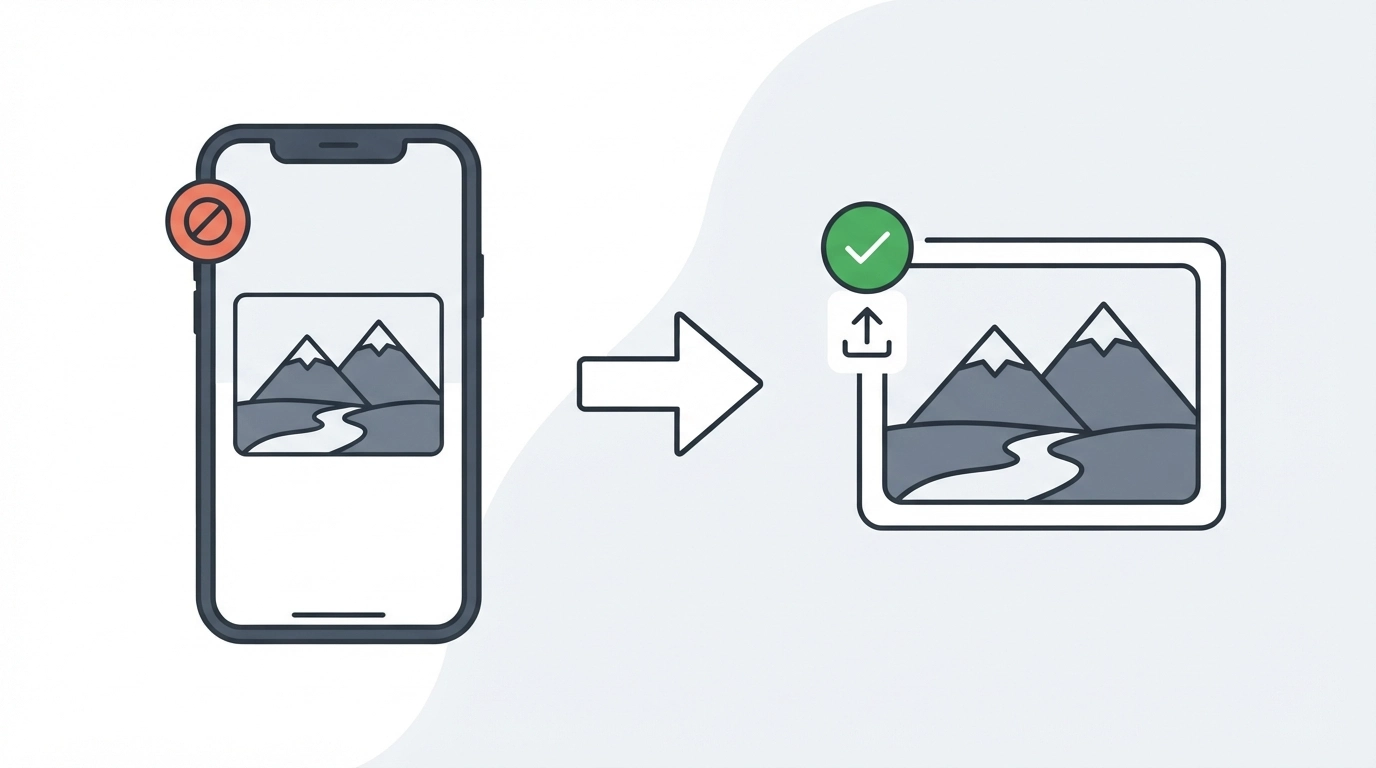
You take a great photo on your iPhone, try to upload it to a form or send it to a friend on a Windows laptop, and get an error: “File format not supported.” Nothing is wrong with the photo. It is saved as HEIC, a format that works beautifully on Apple devices and badly almost everywhere else.
What is HEIC, and why does it cause trouble?
HEIC is the format iPhones have used for photos by default since iOS 11. It stores a photo in roughly half the space of a JPG, which is why Apple chose it. The problem is compatibility. Many websites, upload forms, older programs and some Windows and Android setups cannot open it, and our compressor accepts only JPG, PNG and WebP. The fix is to get your photo into JPG, then compress it.
Option 1: Make your iPhone shoot JPG from now on
This is the simplest long-term fix.
- Open Settings and tap Camera.
- Tap Formats.
- Choose Most Compatible.
New photos will be saved as JPG. This only affects photos taken from now on, and the files will take up more space on your phone than HEIC ones. Photos you have already taken stay as HEIC, so you will still need Option 2 for those.
Option 2: Convert photos you already have
- On a Mac: open the photo in Preview, choose File → Export, and pick JPEG as the format. Photos has a similar export option under File → Export.
- On Windows: you may first need Microsoft’s free HEIF image extension to open HEIC files. After that, open the photo and save a copy as JPG from an image editor.
- With a converter tool: pick one that converts on your device. HEIC files are often personal photos, so avoid tools that make you upload them. Here is how to check where a tool sends your files.
Sharing sometimes converts photos for you. When you send a photo to a non-Apple device, iOS will often turn it into a JPG automatically. It does not always happen, so check that the file you actually have ends in .jpg before you upload it.
Option 3: Shrink it after converting
JPG files from a modern iPhone are often several megabytes, and a lot of forms and email systems want far less. Once you have a JPG:
- Open the compressor that matches your limit: 50KB, 100KB or 200KB. For no particular limit, use the main compressor.
- Choose your JPG and compress it.
- Check that faces and any text are still clear.
- Download the result and upload it.
The target tools are covered in more detail in our guide to reducing image size for online forms.
Does converting HEIC to JPG hurt quality?
A little, in theory. JPG is a lossy format, so converting re-encodes the photo and discards some detail. At a high quality setting the difference is very hard to see on a normal screen. The bigger risk is doing it more than once. Convert the original once, compress that file once, and keep the HEIC original safe in case you need it again.
A few habits that save time
- Check the file ending. If it says .heic or .heif, convert it before uploading.
- Keep your originals. Work on copies, so you can always go back to the full-quality photo.
- Test the upload. If a portal gives you a chance to preview or test, do it before the deadline day.
- Switch the camera setting only if you need to. If you rarely upload photos, leaving HEIC on saves phone storage.
Frequently Asked Questions
Why can't I upload my iPhone photo?
Your iPhone probably saved it as HEIC, a format many websites and programs do not accept. Convert the photo to JPG and try again.
How do I make my iPhone take JPG photos?
Go to Settings, Camera, Formats, and choose Most Compatible. New photos will be saved as JPG. Photos you already took stay as HEIC.
Does converting HEIC to JPG reduce quality?
Slightly, because JPG is a lossy format. At a high quality setting the difference is usually hard to notice. Convert once from the original and avoid repeated conversions.
Can your compressor open HEIC files?
No. It accepts JPG, PNG and WebP. Convert your HEIC photo to JPG first, then compress it here.