
Why Does My Photo Look Blurry After Compressing? 6 Fixes
What actually causes soft, blocky or fuzzy results, and how to avoid them
You shrink a photo to make it easier to upload or email, and the result looks soft, blocky or slightly fuzzy. It is frustrating, but compression itself is rarely the whole story. In most cases the blur comes from a handful of specific causes, and each one has a simple fix. This guide walks through the six most common ones, starting with what a good result actually looks like.
What "Blurry" Usually Means
People use the word blurry for three different problems, and it helps to know which one you have. Soft detail means fine textures such as hair, fabric or leaves have lost their sharpness. Blocky artifacts are small squares or smudges that appear around edges and in smooth areas like skies. Banding is visible steps in color where there should be a smooth gradient. All three can come from compression settings, but the fix depends on the cause.
What a Good Result Looks Like
Here is a real example from IMGCompressor.shop. We compressed a photo of an apple on a white background with the quality slider set to 96%. The original file was 350.36 KB and the compressed file was 142.78 KB, which is 59.2% smaller. The tool saved the result as a JPG.
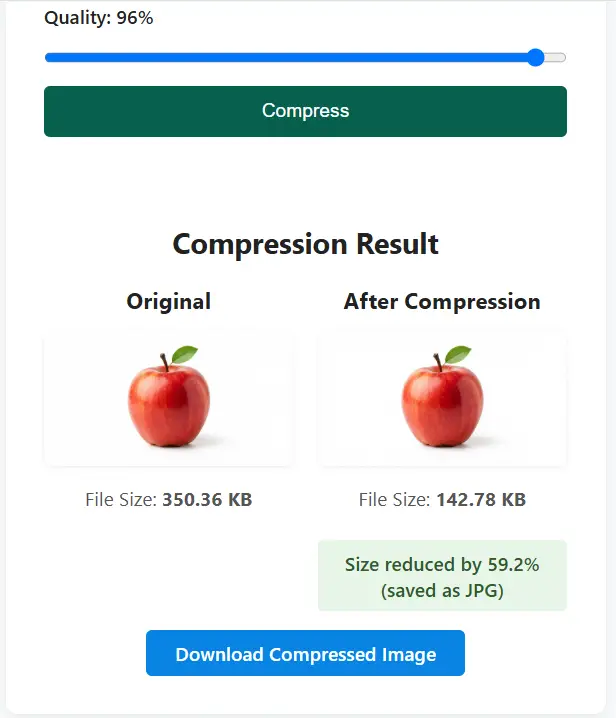
At this size the original and the compressed apple look essentially the same: the edges are clean and the shading on the skin is smooth. The point is that a high quality setting can still cut a file by more than half, so a blurry result usually means a setting or a size target was pushed too far. Keep in mind that a simple subject on a plain background compresses very well. A busy photo full of fine texture will save less at the same setting.
1. The Quality Setting Is Too Low
This is the most common cause. Lower quality means the compressor throws away more detail, and past a certain point you see soft areas and blocky edges. Instead of dragging the slider to the bottom, start high, for example around 80% to 90%, check the result, and lower it in small steps until the file is small enough. Stop as soon as the picture still looks right. Going lower than you need only costs quality.
2. You Compressed an Already Compressed Image
Each time a JPG is saved with lossy compression, a little more detail is lost. If you compress a file, download it, and then compress that downloaded copy again, the damage adds up. Always go back to the original photo and compress it once at the setting you want. If you no longer have the original, avoid compressing the copy further.
3. You Are Forcing a Very Small File Size
Some forms and portals only accept files under a strict limit, such as 100 KB. A large photo squeezed into a tiny file has to lose a lot of data, and that shows. A better approach is to resize the image to the dimensions you actually need first, because fewer pixels means a smaller file at the same quality. Then compress it. A photo that is 1000 pixels wide will hold up far better at a small file size than one that is 4000 pixels wide.
4. The Format Does Not Suit the Image
JPG works well for photographs, but it can leave fuzzy halos around sharp edges, which you notice on text, screenshots, logos and line drawings. PNG and WebP handle that kind of image more cleanly. IMGCompressor.shop saved the apple result above as a JPG, which suits photos. If you are compressing a screenshot or logo and the edges look rough afterward, compare the result with your original and keep the original format if the compressed copy looks worse.
5. The Image Is Being Displayed Larger Than It Is
Sometimes the image is not damaged at all. If a small image is stretched to fill a large space, for example a 400-pixel photo shown across a wide screen, the browser has to guess the missing pixels and the picture looks soft. Compression did not cause that. Use an image that is at least as wide as the space where it will appear, and avoid enlarging small images.
6. You Are Comparing at Different Sizes
A zoomed-in view makes almost any compressed image look worse. Compare the original and the compressed version at the same zoom level, ideally at the size people will really see them. If the difference only appears when you zoom far in, it may not matter for how the image will be used. Also check the result on a phone, since small screens hide detail that a large monitor shows.
Quick Diagnosis
- Squares or smudges near edges: the quality setting is too low (fix 1) or the file was compressed more than once (fix 2).
- Soft overall after hitting a small size limit: resize first, then compress (fix 3).
- Fuzzy edges on text or logos: try a different format or keep the original (fix 4).
- Blurry only on the web page: the image is displayed larger than its real size (fix 5).
- Looks fine at normal size, bad when zoomed: compare at the same size (fix 6).
The Takeaway
A blurry photo after compression is almost always fixable. Work from the original file, start with a high quality setting, resize before chasing a tiny file size, and choose a format that fits the image. For more on how file size affects page speed, see our guide to how image compression helps page speed and SEO.