
How to Make Phone Photos Smaller and Free Up Storage
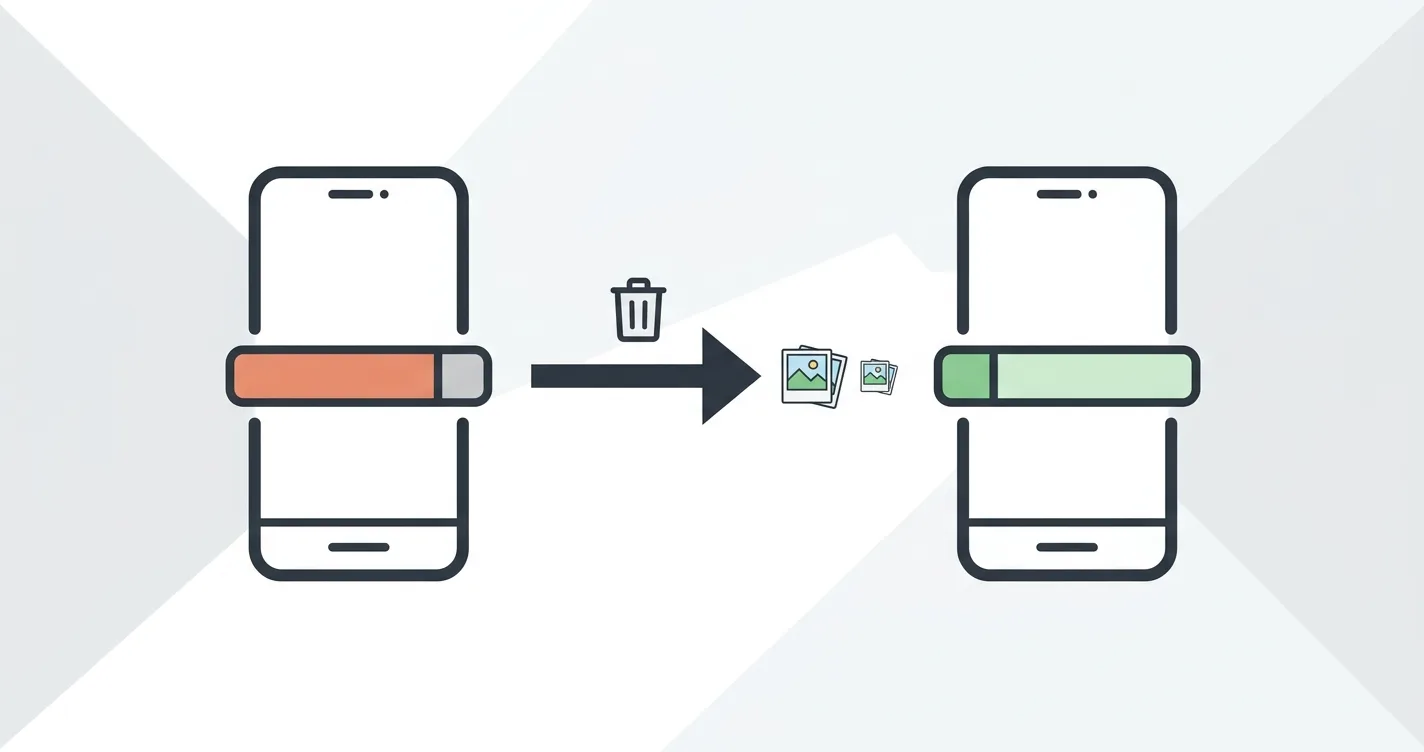
“Storage almost full” is one of the most annoying messages a phone can show, and photos are usually the biggest cause. Every picture takes several megabytes, and a few years of them adds up to tens of gigabytes. The good news is that you can get a lot of space back without losing the memories you care about. Here is the order I would tackle it in.
Step 1: See what is actually using the space
Do not guess. On an iPhone, open Settings → General → iPhone Storage for a breakdown by app and category. On Android, open Settings → Storage. If photos and videos are at the top, the steps below will help. Videos are often larger than all your photos put together, so check them too.
Step 2: Delete the clutter
This is the quickest win, and it costs you nothing you will miss.
- Duplicates and near-duplicates. Recent versions of iOS can find duplicates for you in the Photos app, under Albums and then Utilities.
- Screenshots and old memes. They pile up quietly.
- Blurry shots and burst photos. Keep the best one and delete the rest.
- Downloaded media from chat apps. Messaging apps often save their own copies of photos and videos.
Remember that deleted photos usually go to a Recently Deleted or Trash folder first, so the space comes back only after you empty it.
Step 3: Back up, then let the cloud hold the originals
Both major phone platforms can keep full-size photos online and leave smaller versions on your phone. On an iPhone, go to Settings → your name → iCloud → Photos and turn on Optimize iPhone Storage. On Android, Google Photos has a Free up space option that removes copies that are already backed up. The exact menu names vary between versions.
Before you delete anything, confirm that your backup has finished. A backup that is half done is the most common way people lose photos.
Step 4: Change the camera settings
A few settings reduce the size of every future photo and video.
- Keep the efficient photo format. On an iPhone, Settings → Camera → Formats → High Efficiency saves photos as HEIC, which takes up much less space than JPG. This is the opposite of the advice in our HEIC guide, which suits you if you often upload to sites that reject HEIC. If you rarely do, High Efficiency saves space.
- Lower the video resolution. Recording in 1080p instead of 4K makes video files much smaller.
- Switch off Live Photos. Each one includes a short video clip, which makes it larger than a normal photo.
Step 5: Shrink the photos you want to keep
To save time, compress several photos at once instead of one by one.
For photos you want to keep on your phone or share, a smaller copy can use a fraction of the space.
- Open the image compressor and choose a JPG, PNG or WebP photo. If it is a HEIC file, convert it to JPG first.
- Leave the quality at about 70%, or raise it for a closer match to the original.
- Click Compress and compare the two versions.
- Download the smaller copy.
Everything runs in your browser, so your photos are not uploaded. Keep in mind that compressing creates a new file. You only free up space after you delete the original, and compression removes some detail. If a photo is irreplaceable, keep the full-size original in a backup and use the small copy for everyday use. Our guide to making photos smaller in MB has more methods.
Step 6: Move old photos off the phone
For photos you rarely look at, copy them to a computer or an external drive, check that they opened properly, and then remove them from the phone. It is a one-time job that can free many gigabytes.
A simple routine to keep it from filling up again
Once a month, delete screenshots and duplicates, empty the Recently Deleted folder, and check that your backup is up to date. Ten minutes a month is far easier than a panicked clean-up when the storage warning appears.
Frequently Asked Questions
What takes up the most space on a phone?
Usually videos and photos. Check your phone's storage settings for an exact breakdown by category and app.
Will deleting photos from my phone delete them from the cloud?
It depends on your settings. With sync turned on, deleting a photo on your phone often deletes it everywhere, so understand your backup settings before you delete.
Does compressing photos free up space on my phone?
Only if you delete the original after making the smaller copy. Compressing a copy on its own just adds another file.
Is it safe to compress photos I want to keep forever?
Compression removes some detail, so keep the full-size originals in a backup and use the compressed copies for everyday sharing.