
How to Compress Multiple Images at Once (Without Doing Them One by One)
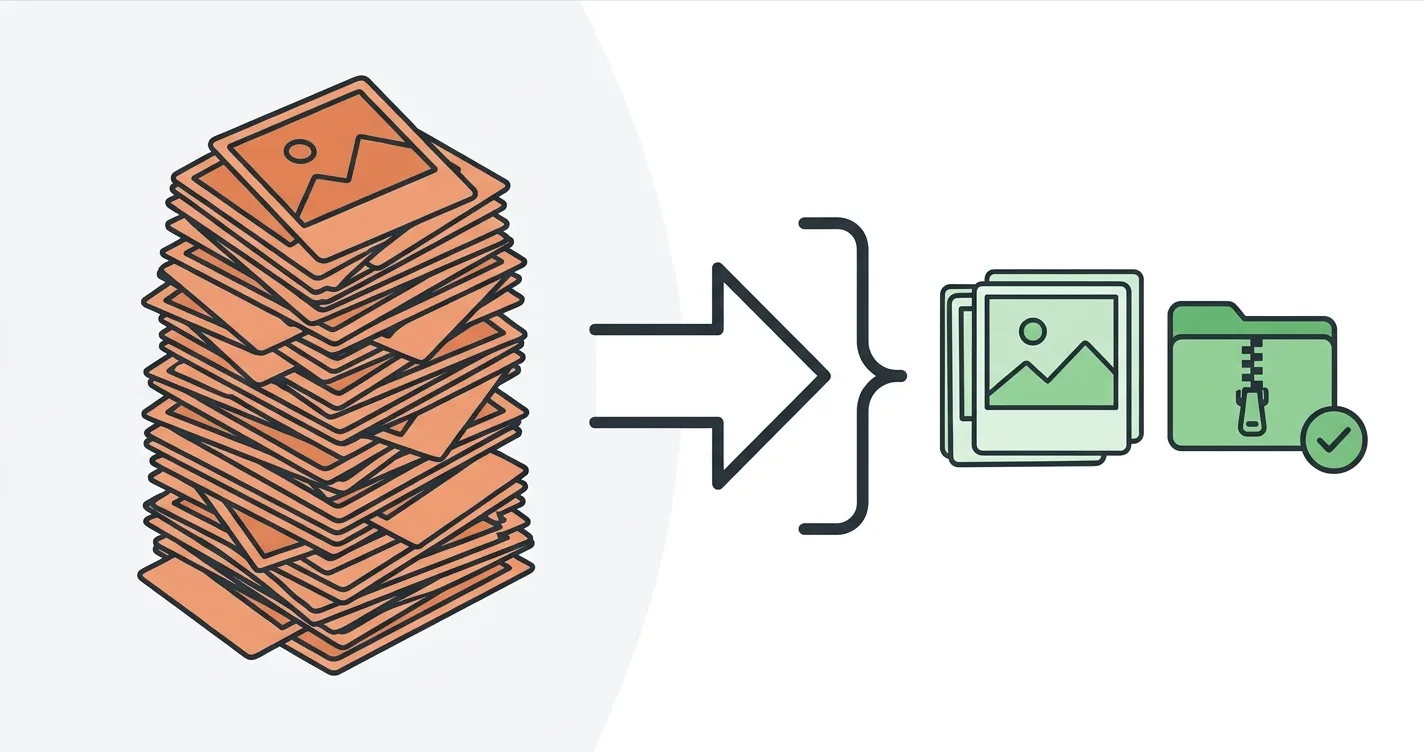
You have a folder of photos to shrink: product shots for a shop, pictures from an event, images for a blog post. Opening an online tool, uploading one photo, downloading it and starting again twenty times is a waste of an afternoon. A bulk compressor does the whole batch in one go. Here is how it works and how to get good results.
When bulk compression helps
- Product or portfolio photos that all need to load quickly on a website.
- Event or holiday albums you want to share without huge files.
- Images for a blog post or presentation, where one pass saves a lot of clicking.
- Email attachments. A handful of photos can add up to more than your mail provider allows. This guide explains why email rejects large photos.
How to compress multiple images step by step
- Open the bulk image compressor.
- Choose your images with the file picker, or drag them onto the box. You can add up to 20 JPG, PNG or WebP files at a time.
- Set the quality slider. It starts at 70%, a good balance for most photos.
- Click Compress all. The images are processed one after another, and a progress bar shows how far along it is.
- Check the table. It lists each file’s original size, new size, percentage saved and status.
- Download images one by one, or click Download all as ZIP to get every file together.
Choosing one quality setting for a whole batch
The slider applies to every image, so it helps to pick it carefully.
| Quality | What to expect |
|---|---|
| 80–100% | Small reduction, almost no visible change |
| 60–79% | A balanced result for websites, email and sharing |
| Below 60% | Smallest files, with visible loss of quality |
A useful trick: try your most detailed photo first, because it is the one most likely to look soft. If it still looks good, the rest of the batch will too. If not, raise the quality and compress again.
What happens to different formats
Each image keeps its own format, so mixed batches work fine. A JPG stays a JPG, a PNG stays a PNG with its transparency preserved, and a WebP stays a WebP. If an image would not get smaller, the original is kept and the status column says so. That usually means the file was already well optimized. If you are unsure which format suits which image, our format guide explains the differences.
Tips for larger batches
- Work in groups of 10–20. Big photos use a lot of memory, and a phone may struggle with a full batch of very large files.
- Close other tabs if the page feels slow.
- Zoom in on a few results before you use the whole set.
- Keep your originals. Compressed files are copies named with “-compressed” at the end, so nothing is overwritten.
- Resize very large photos first if you can. A 4,000-pixel photo shown on a small page wastes data, and this guide shows suitable sizes for websites.
What bulk compression cannot do
It helps to know the limits before you start:
- It applies one quality setting to every image, rather than a different one for each.
- It does not aim for an exact file size. If a form demands a specific limit, use one of the size tools one image at a time, such as compress to 100KB.
- It handles up to 20 images per batch.
Your photos stay private. The compression runs in your browser, so nothing is uploaded. Here is how to check that for any tool.
Frequently Asked Questions
How many images can I compress at once?
Up to 20 images at a time. If your photos are very large or your phone is older, smaller batches work better.
Are my images uploaded to a server?
No. Compression happens in your browser, so your images never leave your device.
Can I download all the compressed images at once?
Yes. Click Download all as ZIP to get every file in one archive, or download each image separately.
Why was one of my images not made smaller?
If the compressed version would not be smaller than the original, the original is kept. This usually means the image was already well optimized.
Can I compress every image to an exact size such as 100 KB?
Not in bulk. The bulk tool uses one quality setting for the whole batch. For an exact limit, use a size tool such as the 100KB page, one image at a time.