
How to Compress a Transparent PNG (Without Losing the Transparency)
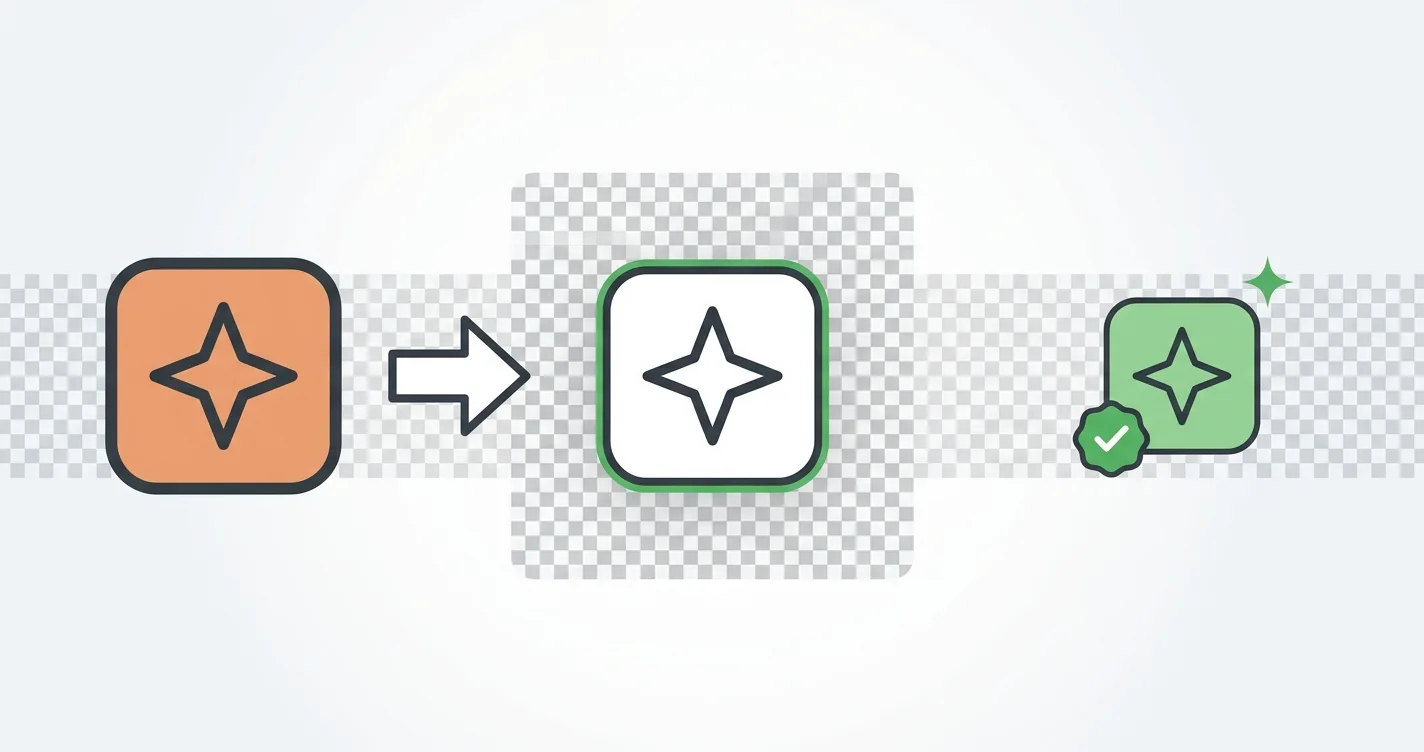
Logos, icons, stickers and product cut-outs are often saved as PNG because PNG supports a transparent background. The downside is that these files can be surprisingly large. The challenge is making them smaller without turning that transparent background into a white or black box. Here is how to do it.
Why transparent PNGs are so big
PNG is a lossless format, which means it keeps every pixel exactly as it was. A transparent PNG also stores an extra layer of information, called an alpha channel, that records how see-through each pixel is. Add large pixel dimensions and photo-like detail, and a single cut-out image can easily weigh several megabytes. That is far more than a website, email or upload form usually needs.
Option 1: Compress it with our tool
Our main compressor keeps your PNG as a PNG and preserves its transparency, so the result works anywhere the original did. Results vary: flat graphics tend to shrink more than photo-like images.
For PNG files, the quality slider works by reducing the number of colours. At 100% the PNG stays lossless, and lower settings use fewer colours. That suits logos and flat graphics well, but soft shadows, gradients and photo-like images can show banding or rough edges at low settings.
- Open the image compressor and choose your transparent PNG.
- Set the quality slider. Start at about 80–90% for logos and graphics with sharp edges, and lower it only if the result still looks clean.
- Click Compress and compare the original with the result.
- Download the smaller file.
Everything runs in your browser, so your images are not uploaded. Before you use the file, place it on a coloured background, for example in a web page or a design app, and make sure the transparent areas are still see-through. Always check the result before you publish it. On the exact-size pages (50KB, 100KB and 200KB), a PNG that cannot reach the target at full size is scaled down slightly, so check the dimensions if they matter.
Want it even smaller? WebP also supports transparency and is often smaller than PNG, but some forms and older programs do not accept it. If you must keep a PNG, use Option 2 below.
Option 2: Make the PNG lighter still
- Resize the image. If it appears at 400 pixels wide, it does not need to be 3,000 pixels wide. This is usually the biggest saving.
- Crop away empty space. Transparent margins still count as pixels.
- Reduce the number of colours. Most image editors can export a PNG with a limited palette, often called PNG-8, which keeps transparency and is often much smaller. Our slider already does something similar for PNG files. It works well for logos and flat graphics, but it can make gradients and photos look rough.
- Use a PNG optimizer. Dedicated PNG tools shrink files without changing how the image looks.
Option 3: Use SVG for logos and icons
If your logo or icon is made of simple shapes and lines, SVG may be the best choice. It is a vector format, so it stays sharp at any size and is usually tiny. It will not suit photographs or complex artwork, but for simple graphics it often beats both PNG and WebP.
Which option should you choose?
| What you need | Best choice |
|---|---|
| A smaller image for a website | WebP, or a compressed PNG from our tool |
| A form or program that only accepts PNG | Resize, crop or reduce colours, then optimize as PNG |
| A simple logo or icon | SVG, or a small PNG |
| A photo with no transparency | JPG. See our format guide |
Mistakes to avoid
- Converting to JPG. JPG has no transparency, so the see-through areas become a solid colour.
- Compressing the same file repeatedly. Lossy compression removes more detail each time, so start from the original.
- Setting the quality too low on a logo. Sharp edges and text soften quickly.
- Skipping the check. Always preview the result on a coloured background before you publish it.
For website images, our guide to the ideal image size for a website shows target dimensions and file sizes.
Frequently Asked Questions
Does compressing a PNG remove the transparent background?
Not with our main compressor. A PNG stays a PNG and its transparency is preserved. Converting to JPG would remove it, so avoid that for transparent images.
Can I compress a transparent PNG and keep it as a PNG?
Yes. Our main compressor keeps a PNG as a PNG. If you need it smaller still, resize it, crop empty space, reduce the number of colours or use a dedicated PNG optimizer.
Is WebP better than PNG for transparency?
WebP supports transparency and usually produces smaller files, so it is a good choice for websites. PNG is still the safer choice where WebP is not accepted.
Why is my transparent PNG so large?
PNG is lossless and stores extra transparency data, so large dimensions or photo-like detail quickly make files heavy. Resizing is usually the quickest fix.